
Set up your account
You will receive an invitation email from the system.
Scroll down to item 3 in the email.
Click the Public Network link.
[If the link has expired, don’t worry! You can request a new email via “Forgot password?”. Or contact us and we will send you the email again.]
Confirm the privacy agreement.
Set a new password and document it, for example in Bitwarden.
The password must be at least 10 characters long and contain uppercase and lowercase letters as well as numbers.
You will be redirected to the login page.
Copy the link from the address bar. Copy everything between https:// and /login.
Sign in to Linkus
Linkus Lite
Start Linkus Lite using the button on your desktop.
Login
Copy the link from your browser’s address bar again. Copy everything between https:// and /login.
User: Your email address or the “Extension Number” from the email.
Password: The password you created earlier.
Making calls
Type or paste a number or name here.
Audio settings
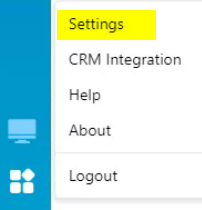
Click the four tiles in the bottom left → Settings → Audio.
Want to try the desktop client and Teams extension?
Would you like to try the Teams app?
Then sign out of Linkus Lite and sign in to the Linkus Desktop Client.
Linkus Desktop Client
Required in order to use the Teams extension!
The program must be open and signed in for you to use the Teams extension.
Audio settings
These also apply to the Teams extension.
Teams extension
Login
Paste the link you just copied.
User: Your email address or the “Extension Number” from the email.
Password: The password you just created.
Allow notifications.
Making calls
Type or paste numbers or names → press ENTER or click the blue handset icon.
Attention! If this red handset is displayed, the Linkus Desktop Client is not running or you are not signed in there.
Not happy?
If you don’t like the look of the Teams extension, switch to Linkus Lite.
Make sure to sign out of the Linkus Desktop Client first.